A photo cleaner for iPhone,
built around one swipe.
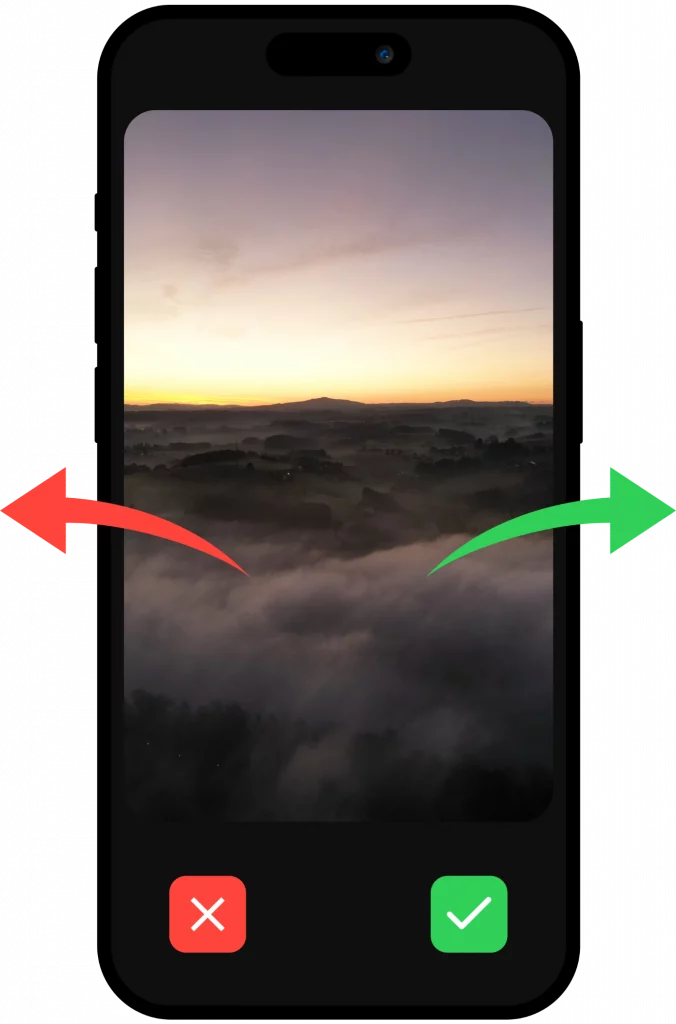
GallerySort turns an overgrown iPhone camera roll into a series of quick decisions. Swipe left to delete, swipe right to keep, and tap an album to give a keeper a home.

Most iPhone libraries do not get messy because of one bad habit. They get messy because every screenshot, near-identical shot and forgotten video quietly piles up, and clearing it all feels like a weekend job. Scrolling the Photos app and tapping Select on dozens of thumbnails is slow, and it is hard to judge a photo you can barely see.
GallerySort shows you one photo at a time, large enough to decide. You swipe, it remembers, and you move to the next one. Because you can work in short sessions of a few minutes, cleanup stops being an event and becomes something that fits between other things.
How cleaning up your iPhone photos works
- Install GallerySort from the App Store and allow access to your photo library when the app asks. That permission is what lets it show you the photos already on your iPhone.
- Start with a small batch rather than the whole library. A few dozen photos is enough to learn the gestures and see how it feels.
- Swipe left on a photo you do not want, and swipe right on one you want to keep. Unsure about one? Keep it for now; you can always come back to it on a later pass.
- For the keepers, tap an album to add the photo to it, or create a new album for a trip, a person or a project. Sorting and organizing happen in the same motion.
- Take a moment over any photo you are unsure about before you swipe it left, and pause when you are tired. Short, regular sessions beat one long marathon.
What it does not do
- GallerySort helps you decide which photos stay. It does not promise a specific amount of freed storage, because that depends on what you delete and on your own iCloud and Optimize Storage settings.
- If iCloud Photos is turned on, deleting a photo on your iPhone can delete it on your other synced devices too. The sorting itself runs locally on your device, but your existing iCloud settings still apply, so back up anything irreplaceable first.
- Deleted photos normally go to the Recently Deleted album in Photos before they are gone for good, and storage may only come back after that album is emptied. Our guides below explain how to check this.
- It is not a substitute for a backup. Decide what you need to keep safe before you start deleting.
Before you start
- Check whether iCloud Photos is on, because that decides whether a deletion reaches your other devices.
- Back up anything you would be sad to lose.
- Pick a manageable batch and a short time limit, such as ten minutes.
Guides that go deeper
- How to organize iPhone photos without spending your whole weekend
- If I delete photos from my iPhone, are they deleted from iCloud?
- iPhone storage still full after deleting photos? What to check
- iPhone Recently Deleted album: how to recover or permanently delete photos
- How to delete screenshots on iPhone (and which ones to keep)
- How to back up your phone photos before deleting: the 3-2-1 idea explained
Clear answers.
Less guesswork.
How do I clean up photos on my iPhone with GallerySort?
Open the app, work through a small batch of photos and swipe left on the ones you want to delete or right on the ones you want to keep. Tap an album to add a keeper to it. Take care with photos you are unsure about.
Is GallerySort free on iPhone?
GallerySort is free to download from the App Store, with in-app purchases for premium features. Check the App Store listing for current pricing and what each purchase includes.
Does GallerySort upload my iPhone photos?
The sorting process works locally on your device. Your existing cloud photo settings, such as iCloud Photos, still apply as before.
If I delete a photo with GallerySort, is it also deleted from iCloud?
It can be. When iCloud Photos is enabled, deleting a photo on one device deletes it on your other synced devices as well. Back up anything you want to keep first, and read our iCloud guide for the details.
Why is my storage still full after deleting photos?
Deleted photos usually move to Recently Deleted first, so space may not come back until that album is emptied. Other items such as videos, apps and system data can also take up room. Our storage guide walks through what to check.